發表文章

WPF - 性能優化

  WPF性能優化一 - Rendering Tier  根据硬件配置的不同,WPF采用不同的Rendering Tier做渲染。下列情況請特別注意,因為在這些情況下,即使是處于Rendering Tier 2的情況下也不會硬件加速。(不全,其余請查閱SDK)  WPF性能優化二 - 布局和設計  盡量多使用Canvas等簡單的布局元素,少使用Grid或者StackPanel等復雜的,越復雜性能開銷越大。  建立邏輯樹或者視覺樹的時候,遵循Top-Down的原則。  WPF性能優化三 - 圖像  對Image做動畫處理的時候(如調整大小等),可以使用這條語句RenderOptions.SetBitmapScalingMode(MyImage,BitmapScalingMode.LowQuality),以改善性能。 用TileBrush的時候,可以CachingHint。  WPF性能優化四 - 對象行為  訪問CLR對象和CLR屬性的效率會比訪問DependencyObject/DependencyProperty高。注意這里指的是訪問,不要和前面的綁定混淆了。但是,把屬性注冊為DependencyProperty會有很多的優點:比如繼承、數据綁定和Style。 WPF性能優化五 - 應用程序資源  在自定義控件,盡量不要在控件的ResourceDictionary定義資源,而應該放在Window或者Application級。因為放在控件中會使每個實例都保留一份資源的拷貝。 盡量使用Static Resources,但不能盲目使用。  WPF性能優化六 - 文本  文字少的時候用TextBlock或者label,長的時候用FlowDocument.  使用元素TextFlow和TextBlock時,如果不需要TextFlow的某些特性,就應該考慮使用TextBlock,因為它的效率更高。  在TextFlow中使用UIElement(比如TextBlock)所需的代价要比使用TextElement(比如Run)的代价高.在FlowDocument中盡量避免使用Te...

C# - NHibernate Queries Examples (轉貼)

圖片
Today was the first day of my NHibernate course, and I think that it might be good to point out a few of the samples that we worked with. Those are pretty basic NHibernate queries, but they are probably going to be useful for beginners. Let us take my usual Blog model, and see what kind of queries (and results) we can come up with: Let us find a blog by its identifier: var blog = s.Get<Blog>(1); Which results in: We can also try: var blog = s.Load<Blog>(1); Which would result in… absolutely no SQL queries. You can look at a more deep discussion of that here . Now, let us try to search by a property: var blogs = s.CreateCriteria<Blog>() .Add(Restrictions.Eq("Title", "Ayende @ Rahien")) .List<Blog>(); Which results in: If we try to make the same with HQL, it would look: var blogs = s.CreateQuery("from Blog b where b.Title = :title") .SetParameter("title","Ayende @ Rahien") .List<Blog>(); Whic...

Flex – Cairngorm 之初體驗

圖片
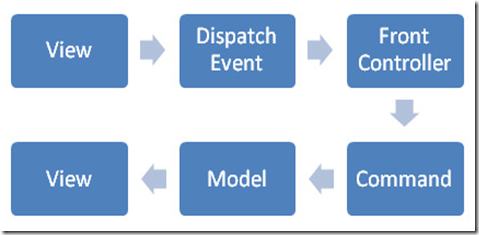
最近在看 Flex 的 Framework, 以 Adobe 官方建議的 Cairngorm 做為開始. 1. ModelLocator : 此部份提供了 Model 的功能, 使用Signleton design pattern 的設計把所有的資料都收集到這邊. 2. Command, Event, FrontController: 在 Front Controller 註冊 Command  與對應的 Event, Event Dispatcher 監聽 Event, 爾後操作過程中 dispatch event 觸發 Command 執行動作, 最後 Update Model 更新 View 顯示. 3. Interact with a server : ServiceLocator : 此 Class 提供了 application 將使用的所有 services, 它包含了 HTTPService, WebService, RemoteObject 呼叫. Business Delegate : 此 Class 有三個 Function     to locate the service that is needed     to call a method on the service     to route the result to the specified responder Value Object : 此 Class 一般定義 property 並不需要任何的 methods, 使用來跟 Server 做 transfer strongly-typed complex data object. 4. Responders, Commands, Delegates : Responders : Responders should deal only in strongly-typed application objects. Responders may set values on the model. Commands : Commands never deal directly with ser...

C# – 得知 Server 上 Protocol 是否已開啟

當程式要得知 Server 上的 Protocol 是否已開啟, 可以試著去連接來查看, 下面的程式碼即可得知 Server 上其 Protocol 是否已開啟.下面提供一個簡單的範例. TcpClient client = new TcpClient(); bool isPortExist = false; Random rnd = new Random(); int portId = rnd.Next(10000, 60000); try { client.Connect("localhost", portId); isPortExist = true; } catch (Exception ex) { isPortExist = false; } finally { Console.WriteLine(string.Format("Port Id : {0},protocol {1}", portId, isPortExist ? "opened." : "closed.")); } Console.Read();

WPF - 窺探 Flow Diagram Designer 的設計

最近收到一個很好玩的 Requirement,提供 Data Sources, Charts, Filters 等組件可讓 User 隨意組合這些元件為一個 Flow 並執行取得結果, 這讓我回想到三年前 WPF 出來時在網路上看到有好心人士提供了其作法和 Source Code, 想不到現在有這 Requirement 需要它了, 真的是太感謝這些好心人士了,那在此記錄一下這些相關的文章, 以防之後還有類似的需求時, 好方便瀏覽. Part 1 – Drag, resize and rotate items on a canvas Part 2 – Toolbox, drag & drop, rubberband selection Part 3 – Connecting items Part 4 – Open/Save, Cut/Copy/Past/Delete and print

Javascript – easy UI 的 datetimebox 自定日期時間格式

圖片
在做 Web 的 UI 時, 其 easyUI 這個免費的 Javascript Framework 提供了很多好用的組件,來幫助我們建立豐富及美觀的 Web 畫面, 在日期組件中提供了 datebox, datetimebox 這二種組件, 並提供相對映的 member 讓我們可以自定日期(日期時間)格式, 提供一個 yyyy-MM-dd HH:mm: ss 的時間格式 $("#startDate, #endDate").datetimebox({ formatter: function (date) { return date.getFullYear() + "-" + (date.getMonth() + 1).toString().leftPad("0", 2) + "-" + date.getDate().toString().leftPad("0", 2) + " " + date.getHours().toString().leftPad("0", 2) + ":" + date.getMinutes().toString().leftPad("0", 2) + ":" + date.getSeconds().toString().leftPad("0", 2); }, parser: function (date) { return new Date(Date.parse(date.replace(/-/g, "/"))); } }); 其顯示如下所示:

C# – M$ Chart Control 自定 ToolTip 的顯示

圖片
在使用 M$ Chart Control 來顯示 Chart 時, 一般的 Requirments 其 ToolTip 在顯示一般都為 X/Y Value,可是當有特別的資料需顯示時,那又該如何呢?在其 DataPoint Class 中提供一個SetCustomProperty Member 讓 User 可以設定其 Custom Property Value,那只需在 Series Class 中設定 ToolTipProperty 後,其 ToolTip 即可顯示 Custom Property. Series s = new Series(); s.Name = "SeriesName"; s.ChartType = SeriesChartType.Line; s.MarkerStyle = MarkerStyle.Circle; s.MarkerSize = 8; s.BorderWidth = 3; s.ToolTip = "Wafer Id: #AXISLABEL\n" + "Time: #CUSTOMPROPERTY(TIME) \n" + "Y Value: #VALY";